Edge Services - Quickstart
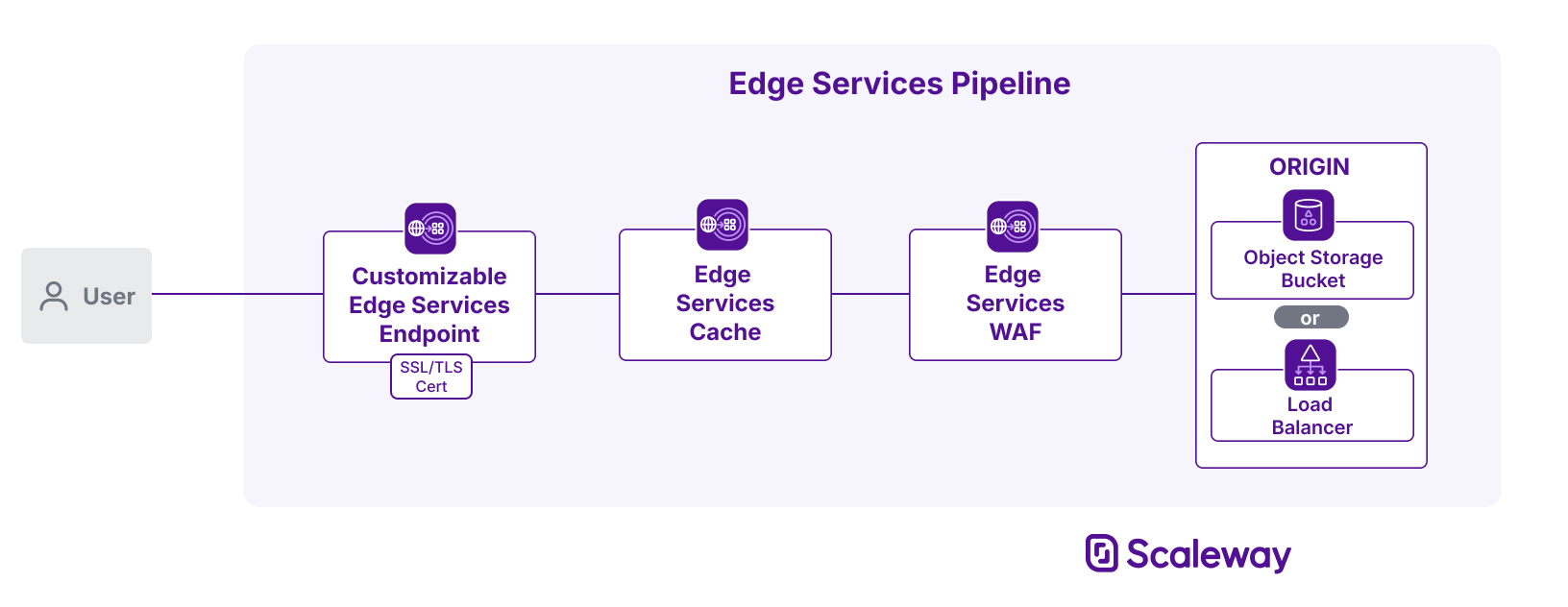
Edge Services is a comprehensive solution for exposing HTTP services to the internet with built-in security, reliability, and performance. Creating Edge Services pipelines towards your Scaleway resources provides:
- A caching service to improve performance by reducing load on your backend, and
- A Web Application Firewall to protect your backend from threats and malicious activity, and
- A customizable and secure endpoint for accessing content via Edge Services, which can be set to a subdomain of your choice and secured with an SSL/TLS certificate.
To use Edge Services, you must take out a subscription plan, which then enables you to create a certain number of Edge Services pipelines towards your backends.
Before you start
To complete the actions presented below, you must have:
- A Scaleway account logged into the console
- Owner status or IAM permissions allowing you to perform actions in the intended Organization
- Created either a Load Balancer or an Object Storage bucket
How to subscribe to Edge Services
To use Edge Services, you must subscribe to a pricing plan. Within its monthly price, each pricing plan includes a fixed number of pipelines, a certain amount of egress cache data, and a fixed number of WAF requests. Any consumption that exceeds the limits of the plan is charged at an additional rate.
Find out more about how Edge Service subscription plans and billing works on our Understanding Edge Services pricing page, or follow the steps below to subscribe.
-
Click Edge Services in the Network section of the Scaleway console side menu.
-
Click Subscribe to Edge Services. Information about available pricing plans is displayed.
-
Select a plan, and click Subscribe to Edge Services.
Your subscription is created, and you are returned to the Edge Services dashboard, on the Pipelines tab. All your Edge Services pipelines will display here.
On the Plans tab you can view your current subscription plan, and your Edge Services consumption in relation to your plan's limits on pipelines, cache and WAF.
How to create an Edge Services pipeline
You can create a pipeline for any of your backends.
-
Click Edge Services in the Network section of the Scaleway console side menu.
-
Click Create pipeline. The pipeline creation wizard displays.
-
Under Configure backend, select the Backend type for this pipeline, then configure the backend depending on the type you selected:
-
Under Configure options, set the options you want for this pipeline:
- Cache: When enabled, content from your backend is cached with Edge Services and served directly to users from Edge Services' servers. Set a Lifetime value to dictate how long objects should remain in the cache before being freshly retrieved from the backend. A value of
0means objects will not be cached, unless they have a caching directive. Find out more about caching. - WAF: When enabled, requests to your backend are evaluated by a Web Application Firewall. Malicious requests are blocked or logged, depending on your settings. Set a paranoia level to determine WAF's aggressivity, and a mode (block or log) for dealing with malicious requests. Find out more about WAF.
- Cache: When enabled, content from your backend is cached with Edge Services and served directly to users from Edge Services' servers. Set a Lifetime value to dictate how long objects should remain in the cache before being freshly retrieved from the backend. A value of
-
Enter a name for the pipeline, or keep the randomly generated one.
-
Check the cost summary for the pipeline, then click Create Edge Services pipeline.
You are returned to the Pipelines tab, where the newly created pipeline now displays. Click on the pipeline to go to its Overview page and start configuration.
How to configure a custom domain
If you already own a domain, you can customize an Edge Services pipeline endpoint with a subdomain of your choice, e.g. subdomain.mydomain.com. This means you can access your backend through Edge Services via your own subdomain rather than the standardized Edge Services endpoint.
-
In the Scaleway console, navigate to the Edge Services dashboard for the pipeline whose domain you want to customize:
-
In the Endpoint panel, click Configure domain. The following screen displays:
-
Set a subdomain from which your backend will be accessible via its Edge Services pipeline. You must already own the primary domain. For example, if you own
beautiful-domain.com, choose any subdomain you like and entermy-chosen-subdomain.beautiful-domain.cominto the box. -
This step depends on whether the domain used in the previous step is managed with Scaleway Domains and DNS, or an external domain provider. Choose the appropriate tab below.
-
Provide an SSL/TLS certificate for your subdomain so that Edge Services can serve traffic for it over HTTPS. You have three options for this:
- Generate a free Let's Encrypt certificate, managed by Scaleway, including automatic renewals.
- Select an existing certificate that you have stored in Scaleway Secret Manager.
- Manually import a certificate into Scaleway Secret Manager:
- Enter a name for your certificate (alphanumeric characters only)
- Optionally, add tags by typing each tag and then pressing enter
- Copy and paste the full PEM-formatted certificate chain into the box. Your certificate will be automatically stored in Secret Manager and billed accordingly.
-
Click Customize domain to finish.
Your customized domain is set up, and you are returned to the Edge Services dashboard. The customized domain displays in the Endpoint panel. When you access your backend through this domain, its content will be served via Edge Services.
How to configure caching and WAF
Enabling a cache and/or a Web Application Firewall on your Edge Services pipeline are both optional steps.
-
Enabling a cache means that Edge Services stores copies of files from your backend, and can serve them directly to users from this cache rather then fetching them freshly from your backend each time. This reduces load on your backend and can improve performance. Find out how to configure a cache
-
Enabling WAF means that Edge Services can filter out and block potentially malicious requests to your backend. You can choose the paranoia level to be used when evaluating requests, and set exclusions to define traffic that shouldn't be filtered by WAF. Find out how to configure WAF
How to delete an Edge Services pipeline
-
Click Edge Services in the Network section of the Scaleway console side menu. The Pipelines tab displays.
-
Click the pipeline that you want to delete. You are taken to the pipeline's Overview page.
-
In the Delete Edge Services pipeline panel at the bottom of the screen, click Delete Edge Services pipeline.
A pop-up displays, asking you to confirm that you want to delete the pipeline.
- The backend will no longer be accessible via its Edge Services endpoint, or any customized domains pointing to this endpoint.
- Any files stored in the Edge Services cache will be removed.
-
Click Confirm.
The Edge Services pipeline is deleted. You can create a new pipeline for this backend at any time, but you will need to reconfigure your custom domain, and the cache will initially be empty.
How to terminate an Edge Services subscription
You can terminate your Edge Services subscription at any time, as long as you have deleted all your pipelines. You will be charged pro rata for the month you cancel, based on how many days in that month your subscription was active.
-
Click Edge Services in the Network section of the Scaleway console side menu. Your Edge Services dashboard displays.
-
Click the Plans tab. An overview of your current plan displays, along with options to manage your plan or terminate your subscription.
-
Scroll down to the Terminate subscription section, and click Terminate subscription.
A pop-up displays, asking you to confirm that you want to terminate your subscription.
-
Type DELETE in the box, and click Terminate to confirm.
Your Edge Services subscription is terminated. You can subscribe again at any time.